Best first setup
Use one final product, category, or landing page URL and keep UTM naming consistent across every channel.
Platform guide
Create a clean BigCommerce ad landing page URL for Meta, Google, TikTok, affiliate, email, or other traffic, then verify the campaign labels in GA4 before launch.
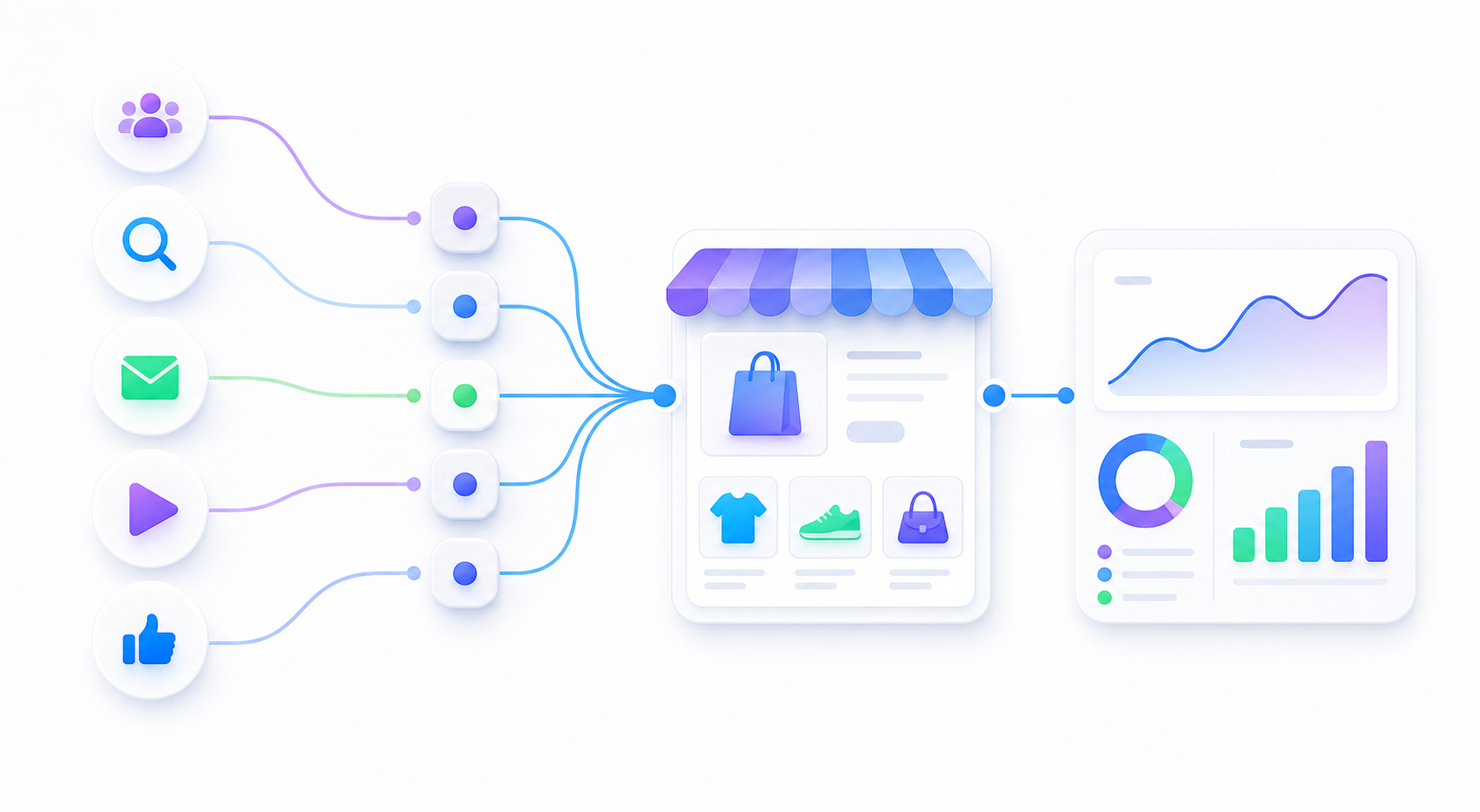
Use one final product, category, or landing page URL and keep UTM naming consistent across every channel.
Redirects, custom landing pages, theme scripts, and duplicate tags can make campaign reporting hard to trust.
You can click the URL, land on the right page, and see the expected campaign values in GA4 Realtime.
utm_campaign readable enough for GA4 reports.utm_content only for creative or placement comparison.| Field | Example | Use it for |
|---|---|---|
utm_source |
meta |
The platform or partner sending the traffic. |
utm_medium |
paid_social |
The channel type you want to group later. |
utm_campaign |
holiday_bundle_launch |
The promotion, launch, or theme of the campaign. |
utm_content |
carousel_ad_02 |
Creative, placement, or message comparison. |
BigCommerce reporting gets easier when source, medium, campaign, and content are named intentionally from the start.