First thing to prove
The store opens correctly from the campaign URL and GA4 Realtime sees the visit with the same campaign labels you set.
Platform setup guide
This is the practical setup path after your URL is built: make sure the visit lands, the source and medium show up, and Shopify is sending believable ecommerce events into GA4.
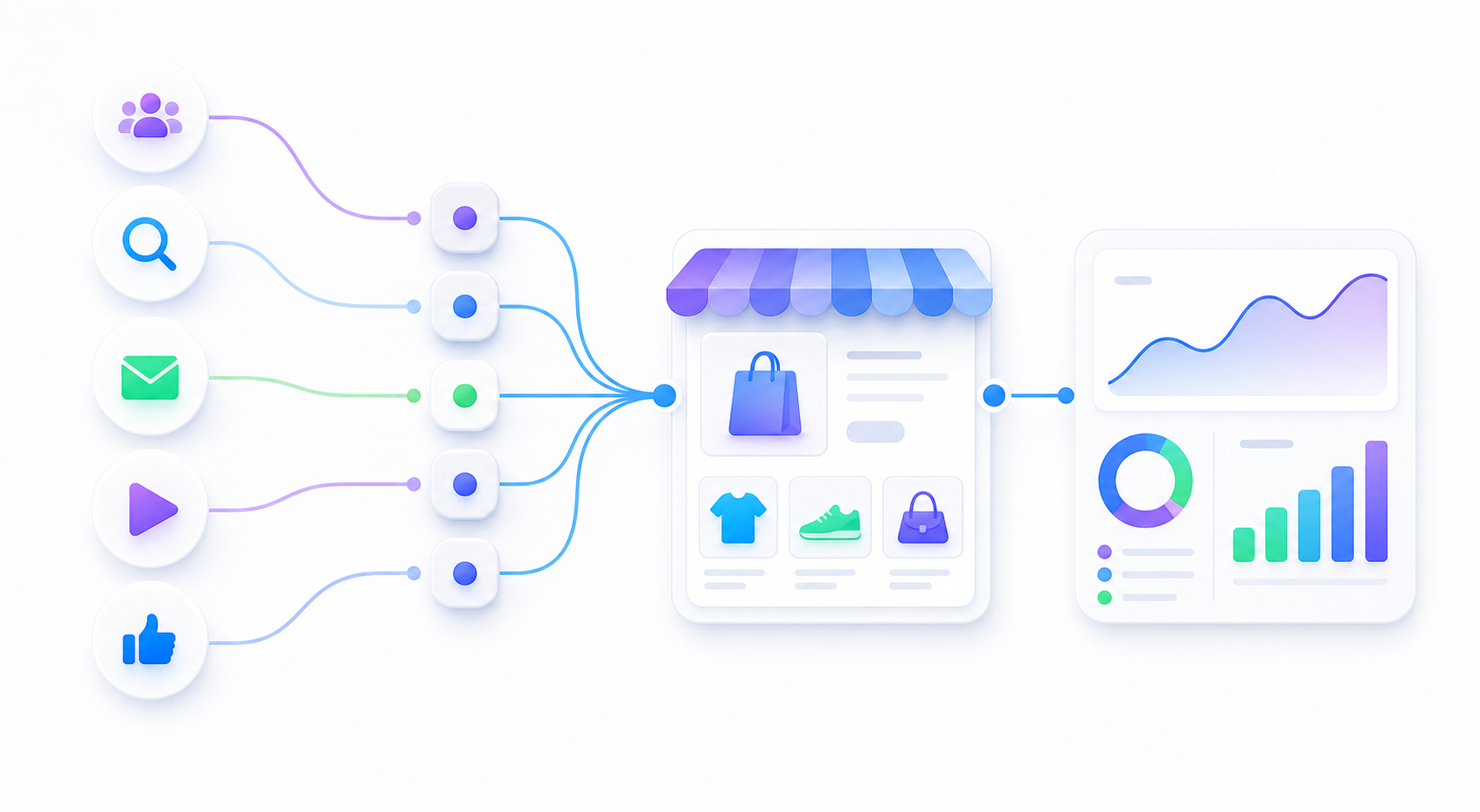
The store opens correctly from the campaign URL and GA4 Realtime sees the visit with the same campaign labels you set.
Key ecommerce events like view_item, add_to_cart, begin_checkout, and purchase appear in a believable order.
Multiple apps, duplicate GA4 installs, or a checkout flow that behaves differently from the landing page.
This usually means the landing-page measurement is alive but ecommerce event wiring is incomplete, duplicated, or disrupted later in the journey. Treat that as a tracking-setup issue, not a campaign-URL issue.
The most reliable Shopify debugging sequence is simple: build the URL, click it, watch GA4 Realtime, then inspect ecommerce events before scale.