Best first setup
Use the homepage builder, keep your URL transparent, and start with static UTMs before adding any platform macros or extra tracking layers.
Platform guide
Build one clean Shopify tracking link, keep redirects honest, and check whether your store is sending the right source, medium, campaign, and ecommerce events into GA4.
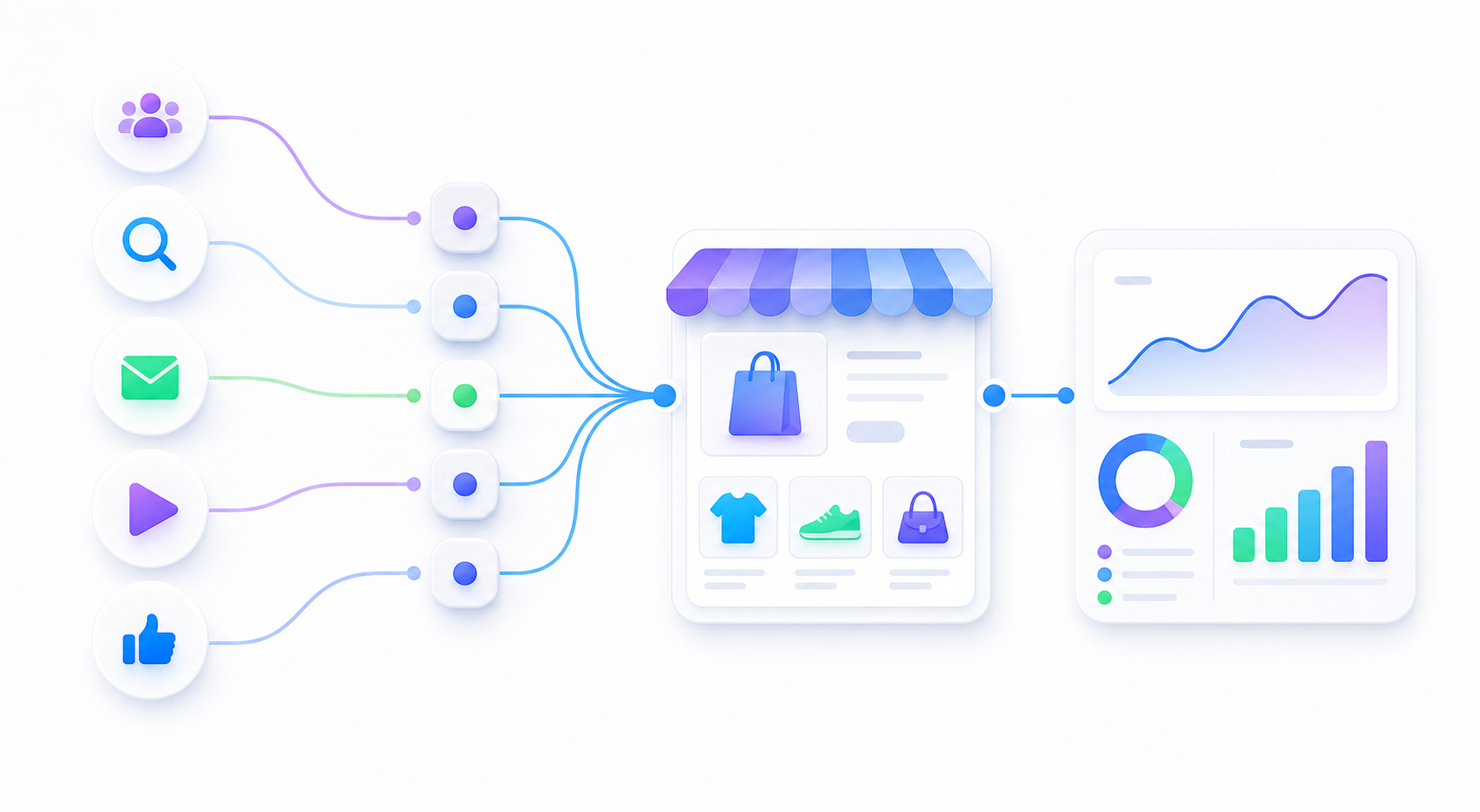
Use the homepage builder, keep your URL transparent, and start with static UTMs before adding any platform macros or extra tracking layers.
Duplicate tags, link shorteners that strip parameters, custom checkout flows, and multiple GA4 installs are the most common reasons Shopify traffic looks wrong.
You click the final URL, Shopify loads correctly, and GA4 Realtime shows the visit with the campaign labels you expected.
summer_drop_canvas_bag so GA4 reports stay readable.utm_content only when you need creative-level comparison, such as hero_video or ugc_1.| Parameter | Good example | Why it helps |
|---|---|---|
utm_source |
meta |
Keeps channel naming consistent across campaigns. |
utm_medium |
paid_social |
Makes channel grouping cleaner inside GA4. |
utm_campaign |
summer_drop_canvas_bag |
Lets you compare launches, promos, or seasonal pushes. |
utm_content |
hero_video |
Useful for ad, creator, or creative-level testing. |
utm_term |
travel_bag_interest |
Optional label for keyword, audience, or targeting detail. |
view_item, add_to_cart, begin_checkout, and purchase when your setup supports them.The cleanest workflow is still: build one URL, click it, open GA4 Realtime, and confirm the labels before you spend real money on traffic.